
No account needed — edited in your browser and never uploaded. Use the ⤢ button to go fullscreen.
Want an AI-generated Skin Now?

MORE ABOUT THIS TOOL
Free 3D Skin Editor for Minecraft
Free Minecraft Skin Editor Online
Make your Minecraft character look exactly how you want with the free Minecraft Skin Editor Photo2Skin. Create an original skin, change an outfit, redesign a face or give an existing character a completely new appearance. Paint directly on a 3D model or work on the traditional 2D pixel grid, with both views connected as you edit.
The editor uses the standard 64×64 Minecraft skin format and runs directly in your browser. There is no software to install, no account required and no charge for manual editing. Upload your own skin or start with the sample character, then download your finished design as a PNG for Minecraft Java or Bedrock Edition.
Make Your Own Minecraft Skin
Your Minecraft skin is your character's identity. It might be a simple recolor of Steve, a completely original character or an outfit inspired by your favorite game. With Photo2Skin, you control the individual pixels rather than choosing from a limited set of premade clothing and accessories.
There are several ways to get started:
- Create a custom character: Start with the sample skin and replace its appearance with your own colors, face, hairstyle and clothing.
- Redesign an existing skin: Upload a compatible Minecraft skin PNG and change only the details you want.
- Customize a downloaded skin: Find a character in the Photo2Skin library and open it in the editor.
- Improve an AI-generated skin: Generate a character with AI, then correct individual pixels or add personal details manually.
You can make small adjustments without rebuilding the entire character. Change the color of a hoodie, add a symbol to the back of a jacket or give your character a different hairstyle while keeping everything else intact.
Paint Minecraft Skins in 3D or 2D Easily
The editor offers two ways to work on the same skin. In 3D mode, you see the character as it will appear in Minecraft. Rotate the model, choose a color and paint directly on its visible surfaces. This is especially useful when adjusting clothing, facial features and designs that continue around the sides of the character.
Switch to 2D mode when you need to work on the flat skin texture. You can see the individual pixel layout and make precise corrections without rotating the model. A synchronized preview shows how your changes look in the other view, so you can move between both modes without interrupting your work.
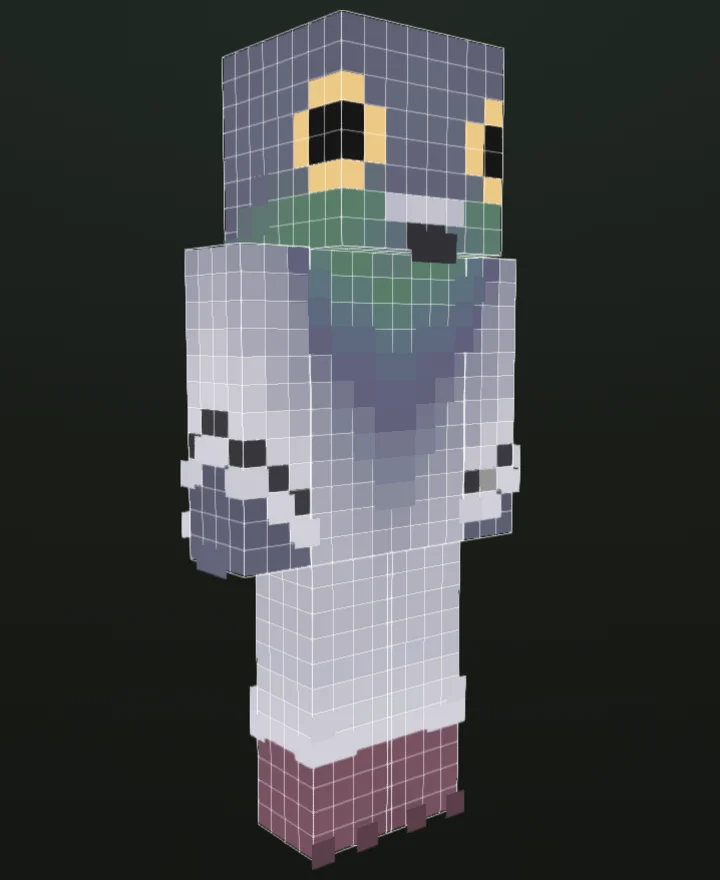
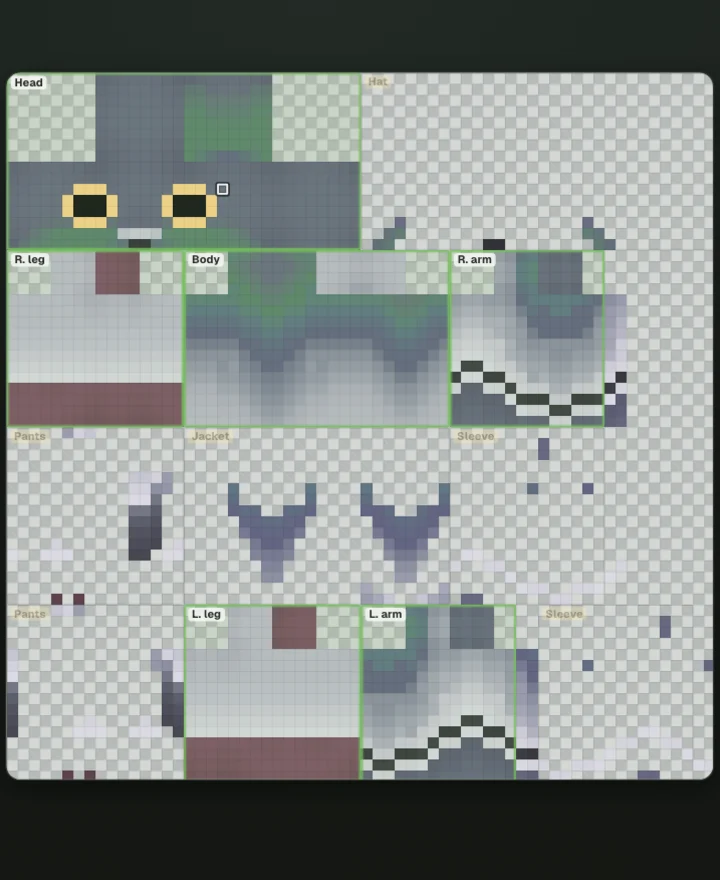
Edit Free Minecraft Skins From Our Library
You don't have to create every character yourself. Explore the Minecraft skins library to find free skins made by other creators, including popular characters, original designs and themed collections. Each skin has its own page with a 3D preview and download options.
Found a design you like but want to make it your own? Use the edit button on its skin page to open the character in the Minecraft Skin Editor. Keep the original design, change a few details or transform it into something completely different.
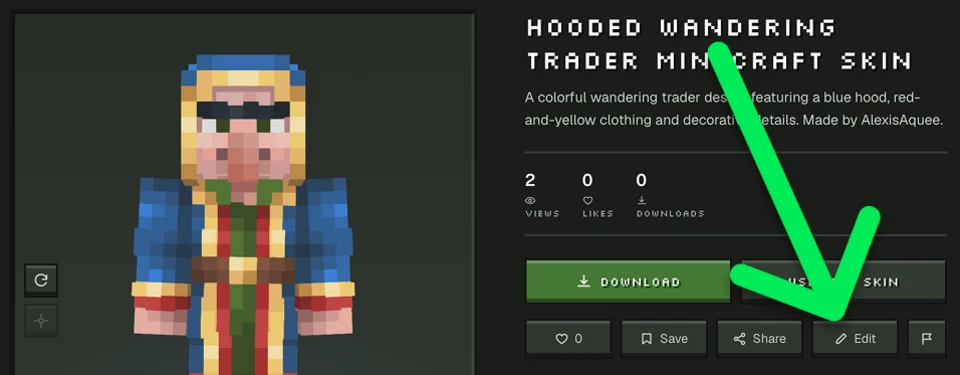
Edit Your AI-Generated Minecraft Skin
Photo2Skin also lets you create a skin with AI before making manual changes. Turn a selfie into a Minecraft character, generate an original design from a text description or transform character artwork into a skin. Once the result is ready, use its edit button to open it in the editor.
This is useful when you like the overall result but want to personalize a specific detail. Keep the generated outfit while changing the eye color, correcting the hair, adding an emblem or refining the face. You can make these adjustments without generating an entirely new character.
Choose the starting point that suits your idea: photo to Minecraft skin, text to Minecraft skin or Roblox avatar to Minecraft skin.
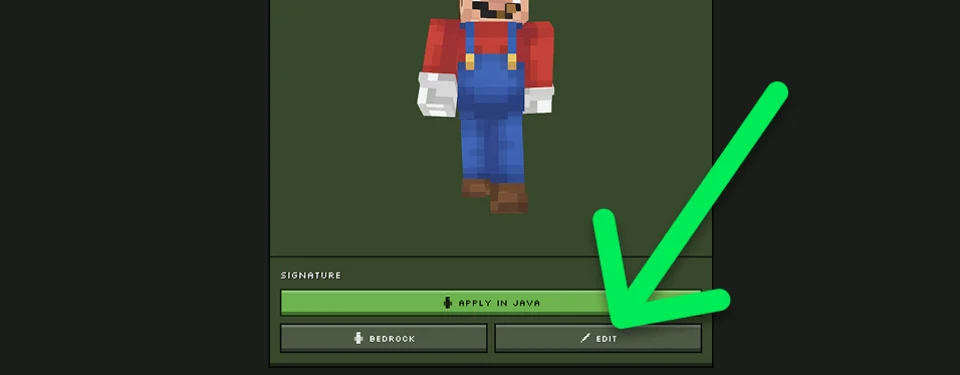
Minecraft Skin Editor Tools and Buttons
Everything you need for everyday skin editing is available in the workspace. Use the painting tools to change the design, the view controls to inspect your character and the file buttons to import or export your work.
| Button | Tool | What It Does |
|---|---|---|
 | Draw | Paint individual pixels or brush strokes using your selected color. |
 | Color Picker | Sample an existing color from your skin to reuse it elsewhere. |
 | Fill | Recolor a connected area of matching pixels without painting each one separately. |
 | Eraser | Remove unwanted pixels, particularly from the outer clothing layer. |
 | Move | Rotate and inspect the 3D character without accidentally painting on it. |
 | Mirror | Repeat your painting on the opposite side to create matching details. |
 | Camo | Add subtle color variation while painting instead of using a completely flat color. |
 | 3D View | Paint on the character model and inspect the finished appearance. |
 | 2D View | Work directly on the flat Minecraft skin texture. |
 | Undo / Redo | Reverse a mistake or restore a change you previously undid. |
 | Upload | Import a compatible Minecraft skin PNG from your device. |
 | Download | Export your completed character as a standard Minecraft skin PNG. |
For a complete explanation of the interface, color settings and individual controls, read our step-by-step Minecraft skin editor guide.
Customize Faces, Outfits and Individual Body Parts
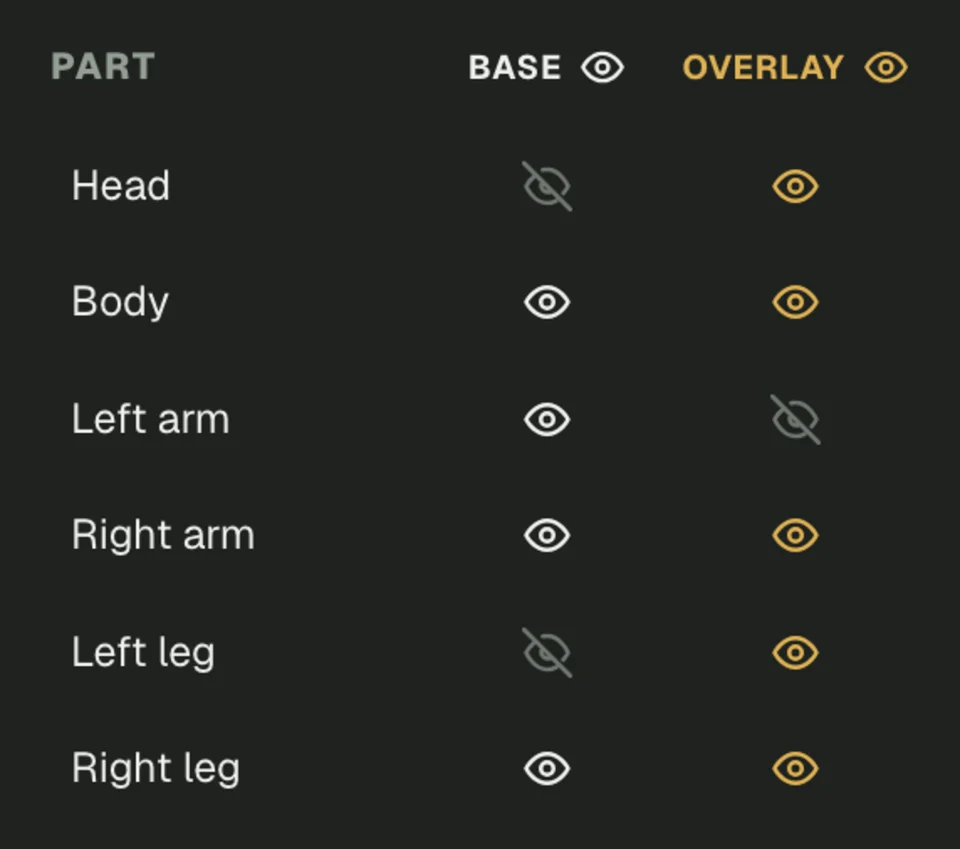
A custom skin should look complete from every angle, not just the front. The Photo2Skin editor lets you work on the head, body, left and right arms, and both legs. You can also hide individual parts while editing, making it easier to reach surfaces that are normally difficult to see.
Give your character a new face, change the back of a hairstyle or add matching patterns to both sleeves. You can also edit the outer layer separately to create hats, jackets, raised hair and other details that sit above the main texture.
Classic Steve and Slim Alex Models
Choose the character model that matches your skin. Classic skins use Steve-style arms that are four pixels wide, while Slim skins use Alex-style arms that are three pixels wide. The editor can detect the model when you upload a skin, and you can switch between them when needed.
If you're signed in, you can also save changes to eligible skins generated in your Photo2Skin account. Otherwise, download the edited PNG directly to your device.
Download Your Minecraft Skin for Free
Once your character looks right, use the Download button to save it as a standard 64×64 PNG. This is the skin texture you import into Minecraft, not a screenshot of the 3D model. You can keep the file, edit it again later or use it as the starting point for another design.
Standard compatible 64×64 skins work with Minecraft Java Edition and supported Bedrock platforms. The import process differs between editions and devices, so follow our Minecraft skin installation guide if you need help applying your new character.
Why Use Photo2Skin's Minecraft Skin Editor?
The editor brings together manual pixel editing, live character previews and direct access to your existing Photo2Skin creations. You can use it for a quick correction or a complete character redesign without moving between several different tools.
- Free browser-based Minecraft skin editing without registration.
- Connected 2D and 3D views for painting and previewing.
- Standard 64×64 skin PNG support.
- Classic and Slim player models.
- Separate base and outer clothing layers.
- Individual body-part visibility controls.
- Direct editing from the Minecraft skins library.
- Manual customization of skins created with Photo2Skin AI.
- PNG export for compatible Minecraft editions.
Minecraft Skin Editor FAQ
What is the best way to edit a Minecraft skin online?
+
Use a dedicated Minecraft skin editor that displays the actual player model and its texture. Photo2Skin lets you upload a standard 64×64 skin, paint in 2D or 3D, preview your changes and download the edited PNG directly from your browser.
Is the Photo2Skin Minecraft Skin Editor free?
+
Yes. Manual skin editing is free. You can upload, paint, customize and download Minecraft skins without creating an account or paying for the editor.
Can I create a Minecraft skin without downloading an app?
+
Yes. The online editor runs directly in your web browser. You only need to download the PNG file when your skin is finished.
Can I edit an existing Minecraft skin?
+
Yes. Upload a compatible 64×64 skin PNG or open a character from the Photo2Skin library. You can change individual details while keeping the rest of the original design.
Can I create my own Minecraft character from scratch?
+
Yes. You can use the sample character as a starting point and replace its colors, facial features, clothing and other details to create your own design.
Does the editor support 3D skin editing?
+
Yes. You can paint directly on a rotatable 3D Minecraft character and switch to the flat 2D texture whenever you need precise pixel control.
Can I edit only one part of a Minecraft skin?
+
Yes. The editor provides separate controls for the head, body, arms and legs. You can hide selected body parts to reach difficult surfaces and edit the base or outer layer independently.
Can I edit a Minecraft skin downloaded from the library?
+
Yes. Open the skin's individual page in the Photo2Skin library and use its edit button to continue customizing the character in the online editor.
Can I edit a skin generated by AI?
+
Yes. After generating a skin with Photo2Skin, open the result in the editor to correct pixels, change colors, adjust clothing or add your own details. Eligible generated skins can also be saved back to your account when signed in.
Does the Minecraft Skin Editor support Steve and Alex?
+
Yes. The editor supports both Classic and Slim player models. Classic has four-pixel-wide arms, while Slim uses three-pixel-wide arms.
Can I add a jacket or hat to my Minecraft skin?
+
Yes. Use the outer layer to add hats, jackets, sleeves and other raised details above the character's base texture. You can edit or erase this layer separately.
Can I change my Minecraft skin's colors?
+
Yes. Choose new colors with the palette, sample existing ones with the color picker or use the Fill tool to recolor connected areas. You can also enter exact HEX colors.
What format does the editor download?
+
The editor exports a standard 64×64 Minecraft skin PNG. It contains the character texture and can be imported into compatible Minecraft editions.
Can I use my edited skin in Minecraft Java and Bedrock?
+
Yes. Standard 64×64 PNG skins are compatible with Minecraft Java Edition and supported Bedrock platforms. Some Bedrock devices have restrictions on importing custom skins.
Will I lose my skin if I close the editor?
+
Download your finished PNG before closing the editor. If you're signed in and editing an eligible Photo2Skin-generated skin, you can also save your changes back to your gallery.
Are my uploaded Minecraft skins private?
+
Yes. When you upload a skin for manual browser editing, the file is processed locally rather than uploaded to a server. Saving a generated skin to your Photo2Skin account is a separate, signed-in feature.
Can I make Minecraft skins on my phone?
+
You can access Photo2Skin through a supported mobile browser. The Photo2Skin iOS app also provides skin creation and editing tools for iPhone and iPad.
Can I edit 128×128 Minecraft skins?
+
For high-resolution skin files, use the separate <l href="/minecraft-skin-editor-128x128">128×128 Minecraft skin editor</l>. This page is designed for standard 64×64 Minecraft skins.